Invite External Admin
External admins can be invited from the Secure Endpoint and Umbrella consoles. Once invited, they will receive access to the MSP Hub console with the role you assign during the invitation process.
Procedure
Step 1 | Go to the Admin Management tab and select the External Admins section. |
Step 2 | In the list of external admins, locate the user you want to invite and click Invite to MSP Hub in the corresponding row. |
Step 3 | The Invite External Admin dialog opens. Review the confirmation message — it displays the email address of the user you are about to invite to the MSP Hub console. |
Step 4 | Enter the admin's First name and Last namein the provided field. |
Step 5 | From the Role dropdown, select the appropriate role for this administrator (for example, Product admin). |
Step 6 | Click Confirm and invite. An invitation email will be sent to the user to complete the onboarding process. 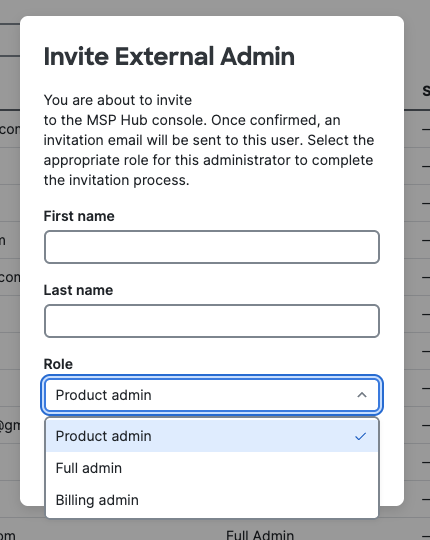 |